
Sign in on a new phone
Your account works on only one phone at a time. Here is how to confirm a sign-in on a new phone and see your latest sign-ins.
- One phone only
- Signing in on a new phone signs out the old one, which gets a notification
- Confirmation
- By the old phone if it can be reached, otherwise by a code sent by email
- Time limit
- The sign-in request expires after 10 minutes
- Email code
- New code after 60 seconds, 5 emails per hour at most
- History
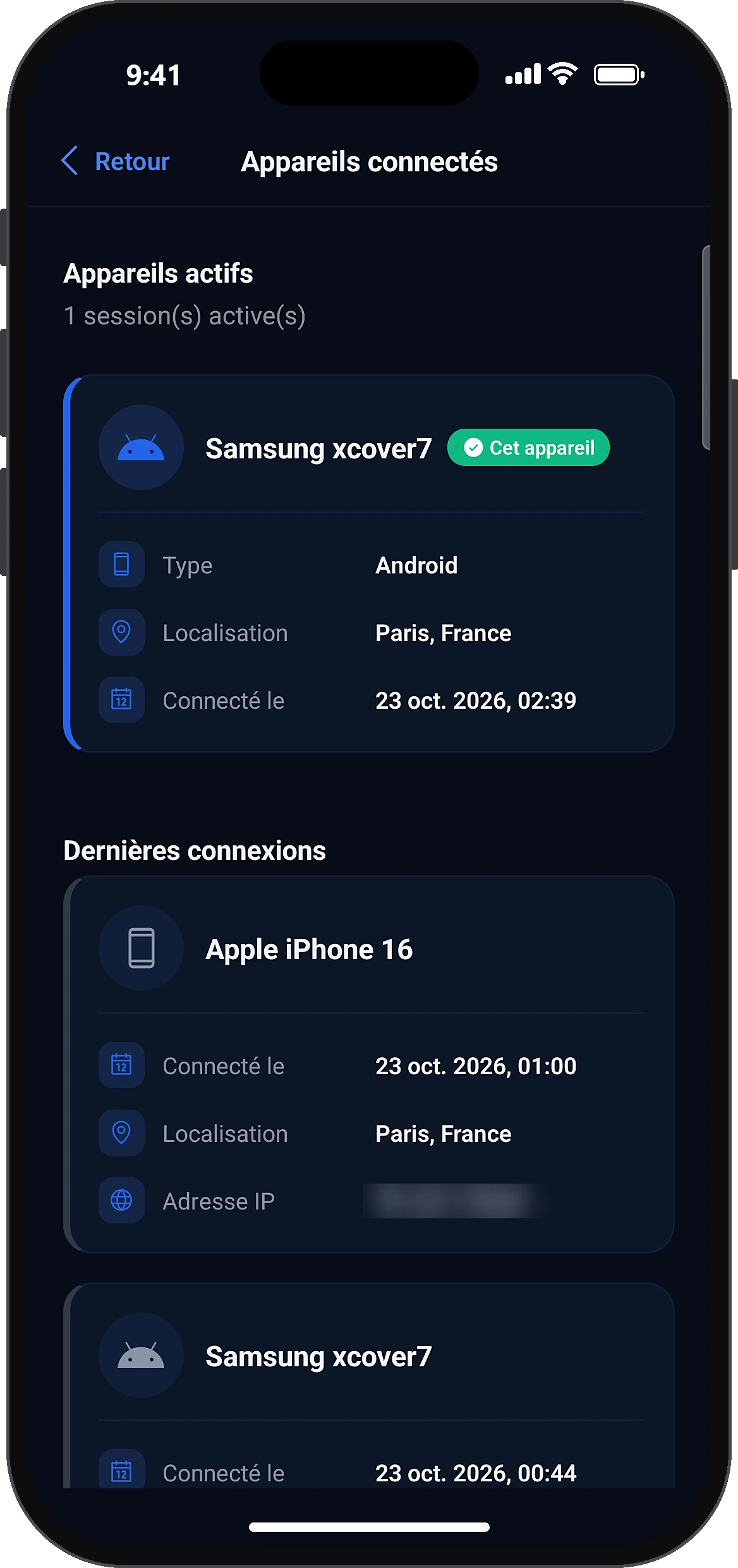
- Profile → Connected devices: active device and last 3 sign-ins (device, date, place, IP address)
Before you start
- Know your password.
- Have the old phone still signed in, or access to the account's email.
- Know your PIN (otherwise, see “Forgot PIN”).
In the app, step by step
- 1
Sign in on the new phone
Add an accountEmail or phone numberNextPasswordSign in
Install Centeem, enter your email or number, tap “Next”, type your password then “Sign in”.
- 2
Wait for the request on the old phone
The “Verification required” screen says a notification was sent to your old phone. You can resend it, or ask for an email code instead. No email is sent unless you ask for it.
- 3
Approve on the old phone
Authorise
On the old phone, the “New sign-in detected” window appears. Check the account and device, tap “Authorise” and confirm with your PIN. A 6-digit code appears. If it is not you, refuse the request.
- 4
Enter the code on the new phone
Confirm
The screen shows “Login approved!”. Type the code shown on the old phone and tap “Confirm”.
- 5
Or use the code received by email
Sign in
If the old phone is no longer signed in, or you asked for the email code, the “Confirm by e-mail” screen appears. Type the 6-digit code AND your password, then “Sign in”.
- 6
Enter your usual PIN
The “New device” screen asks for your usual PIN to get access on this phone.
- 7
Check your sign-ins
ProfileConnected devices
In Profile → “Connected devices”, you see the active device and the latest sign-ins. Another active device can be signed out from there.
Common problems and solutions
“Sign-in refused”
If you refused by mistake, start again. If someone else was trying to sign in, change your password.
“The sign-in request has expired (10 minutes)”
Try again and sign in once more.
“The code was entered incorrectly too many times”
The request is cancelled for security. Start the sign-in again.
“Incorrect code or password”
Check the code in the latest email and your password.
The old phone “can no longer approve the sign-in”
Use the code received by email on the new phone.
Frequently asked questions
Go further
Still stuck? Our team will answer you.
Contact us