
Turn on two-factor authentication
Add a code sent by email to every password sign-in. Even if someone knows your password, they will not get in.
- Where
- Profile → Access & security → Two-factor authentication
- Code
- 6 digits, by email only, valid for 10 minutes
- By default
- Off
- Turn on / off
- Turning on is immediate; turning off requires your PIN
- Fees
- Free
Before you start
- Be signed in and online: the switch is greyed out offline.
- Have access to the account's email at every sign-in.
- To turn it off: have a PIN set up.
In the app, step by step
- 1
Turn on two-factor authentication
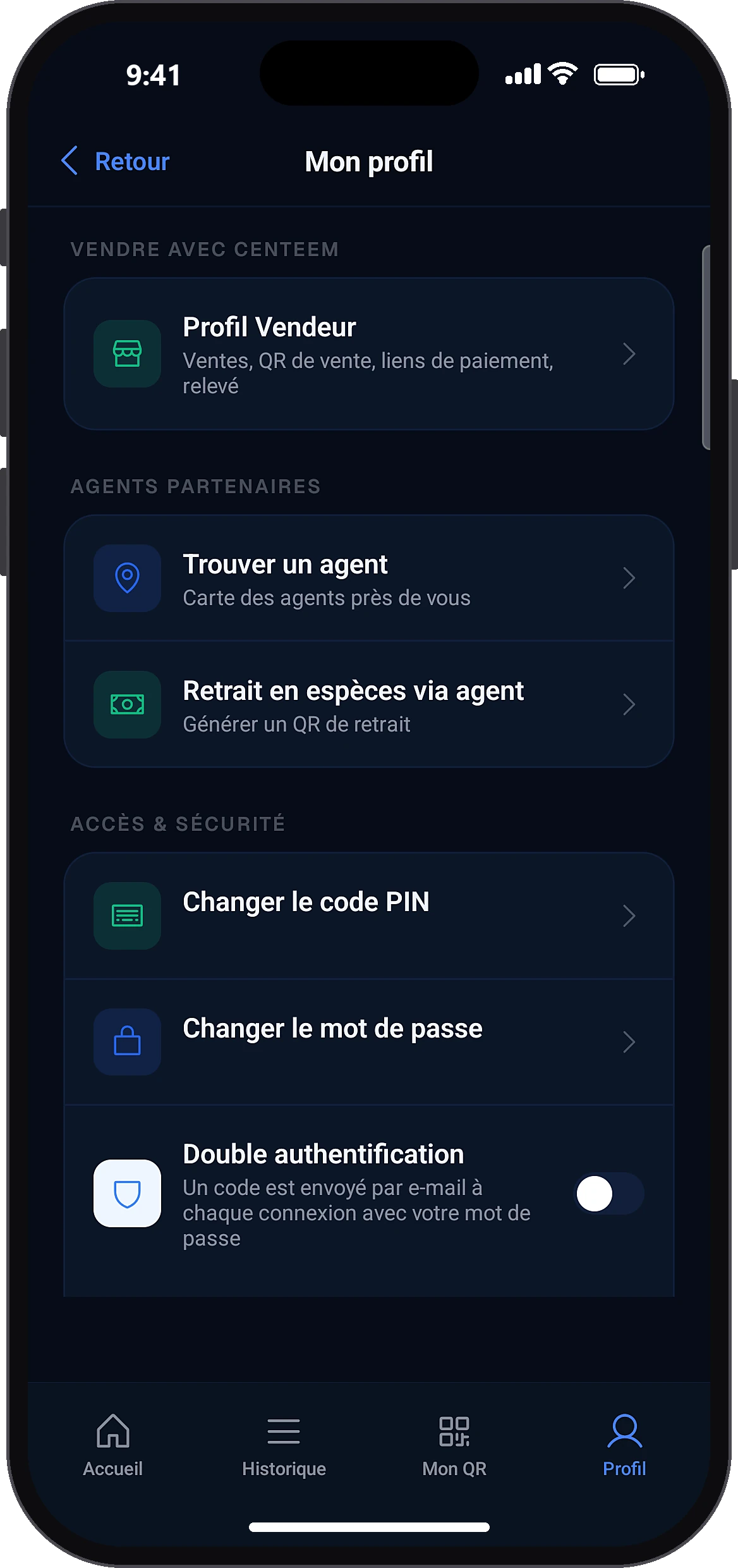
ProfileTwo-factor authentication
In the Profile tab, in the access and security section, tap the “Two-factor authentication” line: the switch turns blue.
- 2
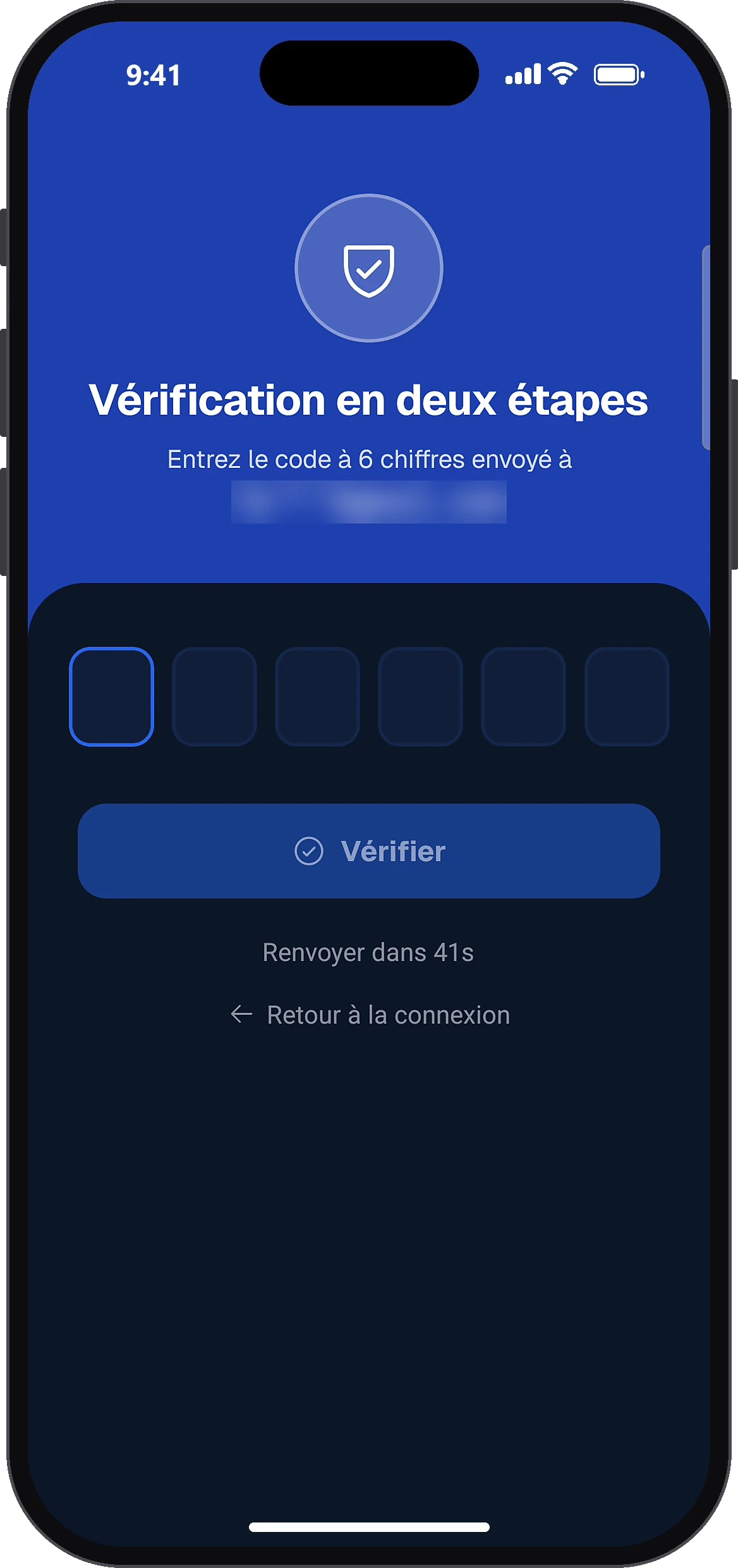
At your next sign-in, enter the code
Sign inVerify
After your password and “Sign in”, the two-step verification screen opens. Type the 6-digit code received by email and tap “Verify”.
- 3
To turn it off, confirm with your PIN
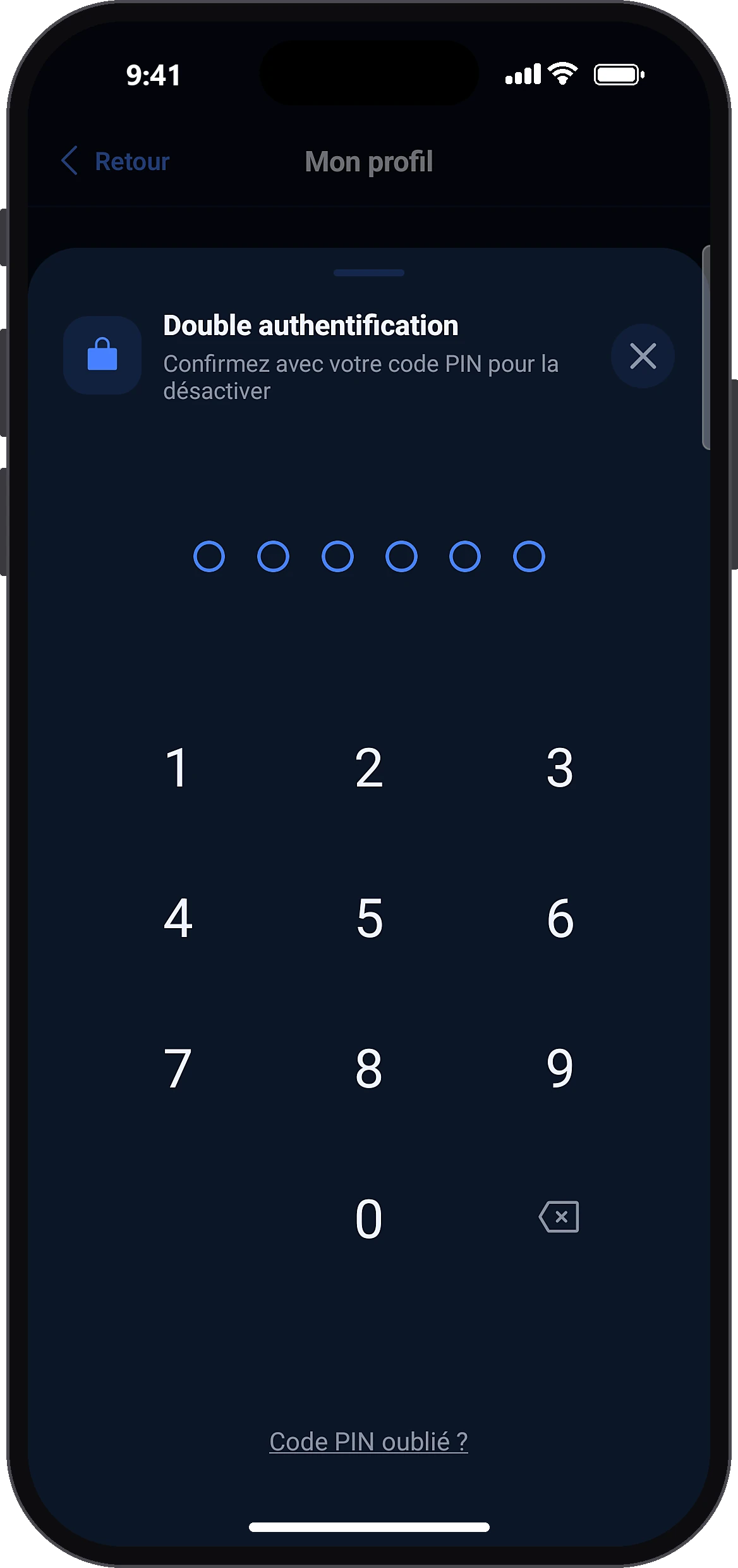
Two-factor authentication
Tap the “Two-factor authentication” line again, then confirm with your PIN.
Common problems and solutions
Error message when changing two-factor authentication
Check your Internet connection and try again.
“Incorrect code”
Check the latest email received and type the code again.
“Code expired. Sign in again.”
Go back to the sign-in screen and type your password again: a new code is sent to you.
I want a new code
The app asks you to sign in again: a new code is sent at each sign-in.
Frequently asked questions
Go further
Still stuck? Our team will answer you.
Contact us