
Change your PIN and turn on biometrics
Your 6-digit PIN opens the app and confirms your operations. Change it whenever you like, and add your fingerprint or face to go faster.
- PIN
- 6 digits, asked when you open the app and to confirm transfers, payments and withdrawals
- Wrong PIN
- 4 wrong tries → blocked 15 min; 4 more → 1 h; then 24 h for each new series of 4. The rule applies per account
- Biometrics
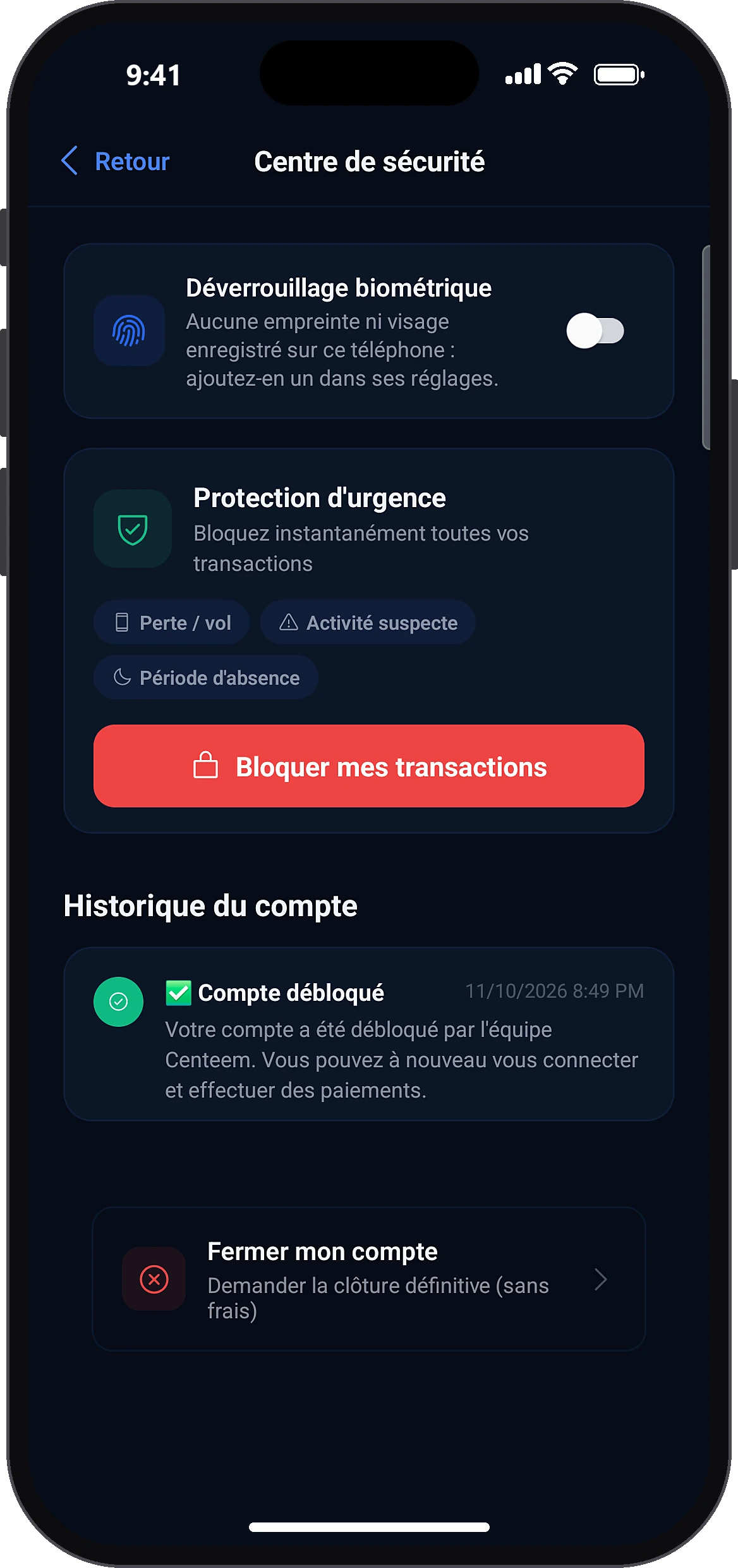
- Profile → Security center → Biometric unlock, to turn on for each account
- Alert
- An email warns you each time your PIN is changed
- Fees
- Free
Before you start
- Be signed in to your account.
- Have an Internet connection: your PIN is also saved on our servers.
- For biometrics: a phone with a sensor and at least one fingerprint or face saved in its settings.
In the app, step by step
- 1
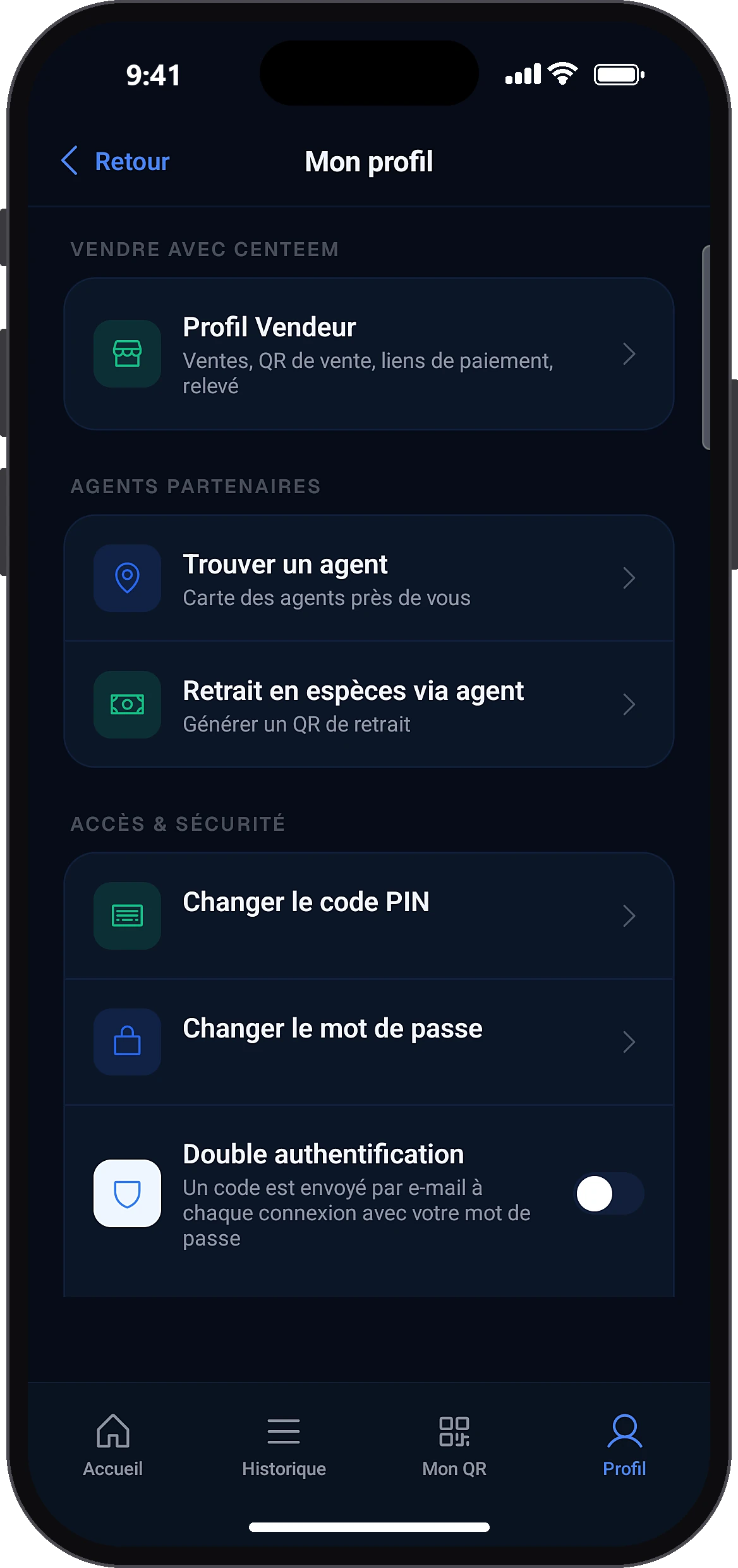
Open “Change PIN code”
ProfileChange PIN code
In the Profile tab, in the access and security section, tap “Change PIN code”.
- 2
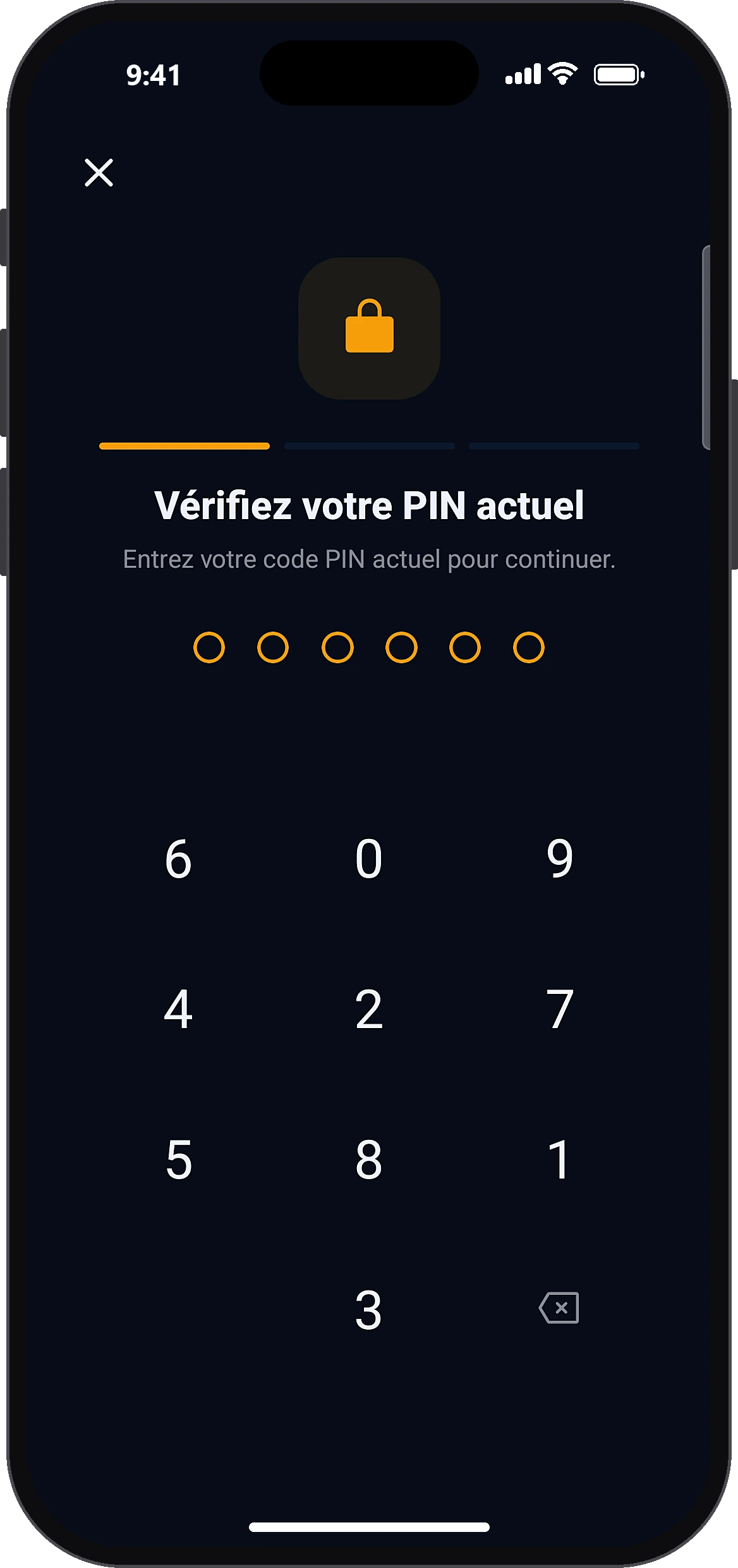
Enter your current PIN
The “Verify your current PIN” screen opens (step 1 of 3). The keypad digits are shuffled: this is normal, it is a protection.
- 3
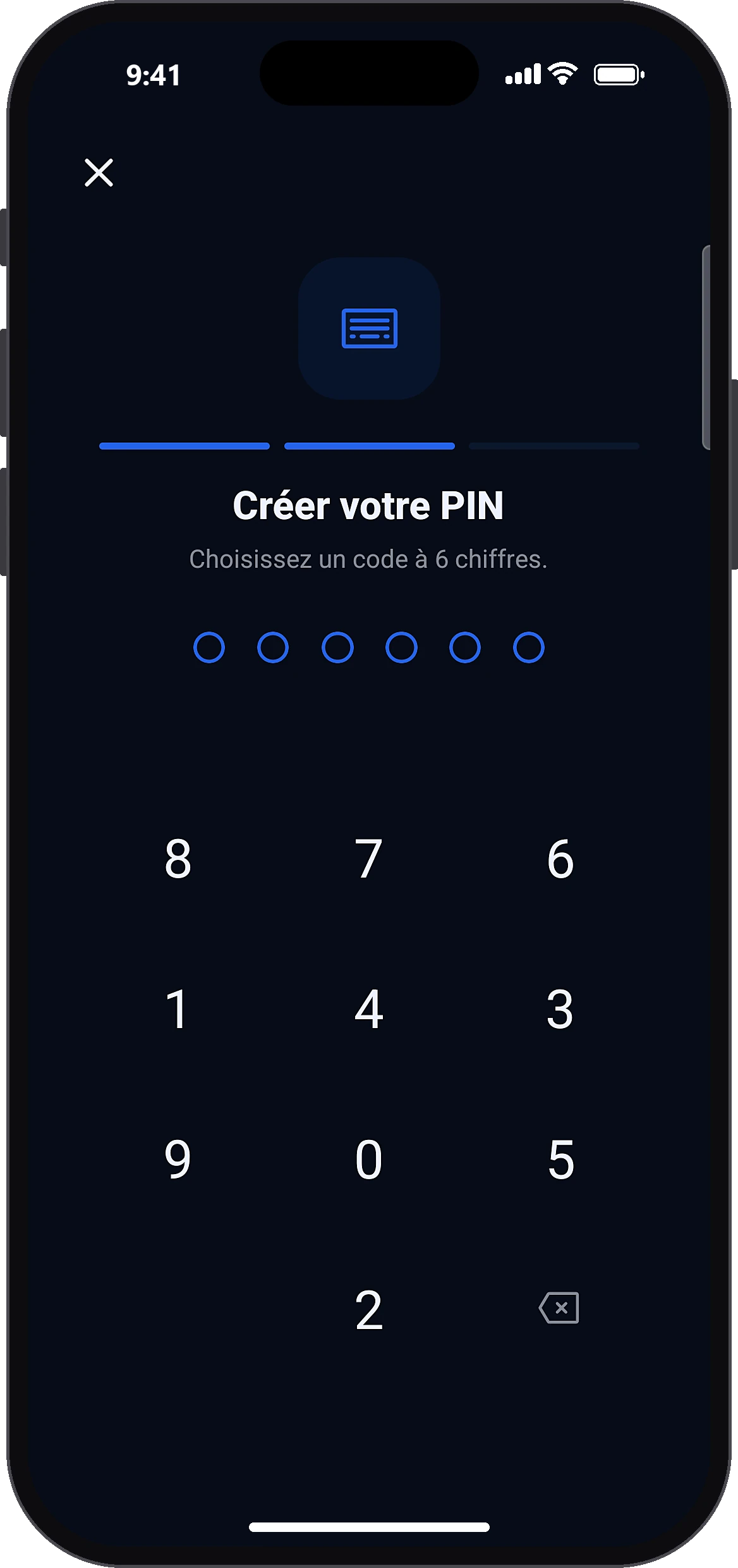
Choose the new code
On “Create your PIN”, type a new 6-digit code. Avoid 123456 or your date of birth.
- 4
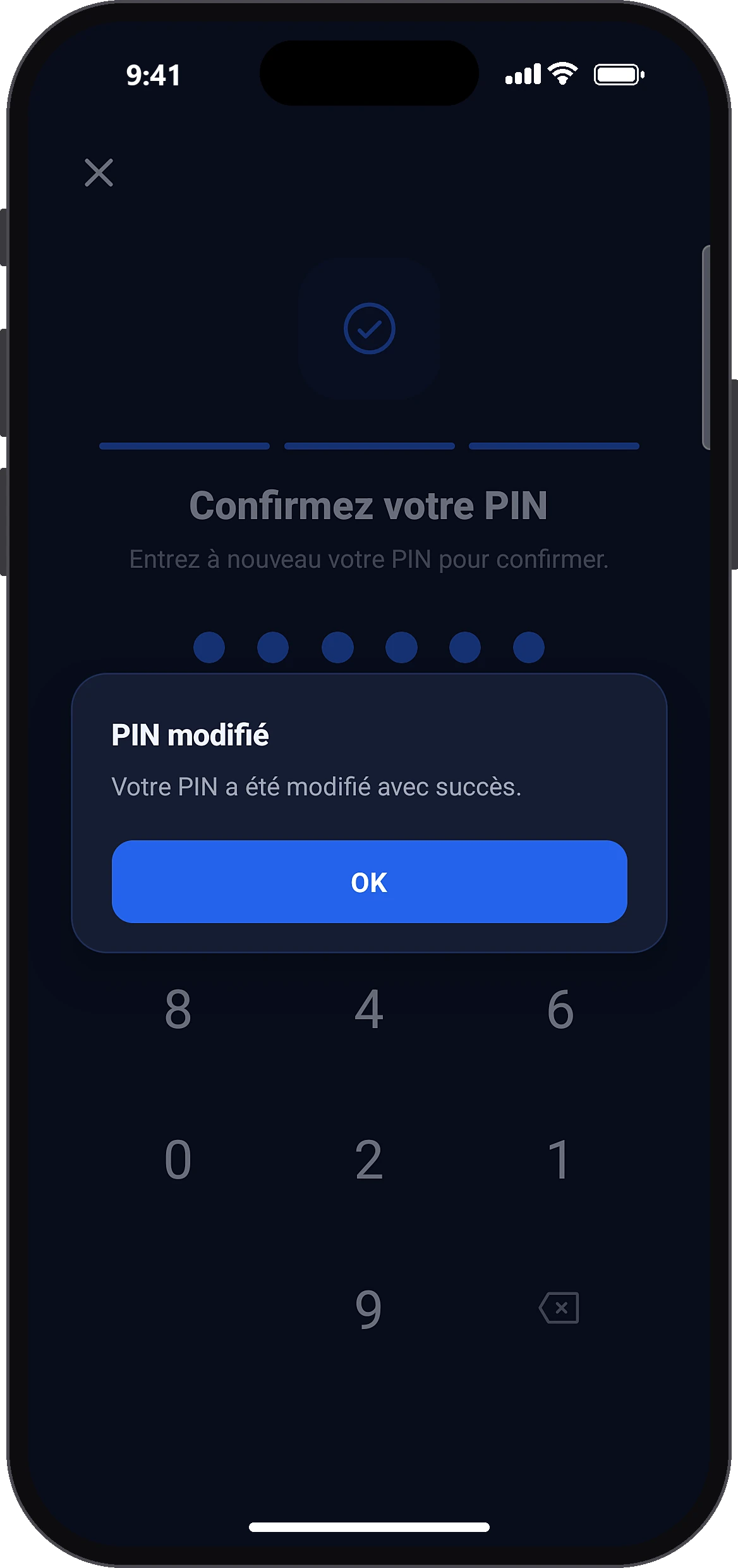
Confirm the new code
On “Confirm your PIN”, type the same code again. If it is different, the app takes you back one step. Otherwise the PIN is saved, you return to Profile and an email confirms the change.
- 5
Turn on biometrics
ProfileSecurity centerBiometric unlock
It is not offered automatically: go to Profile → “Security center”, then tap the “Biometric unlock” switch.
- 6
Confirm with your PIN
Type your PIN: the switch turns blue. The app then offers your fingerprint or face to open the app and confirm operations; the PIN always remains available. To turn it off, tap the switch again.
Common problems and solutions
“Incorrect PIN” at step 1
Type your current PIN again. If you have forgotten it, follow the “Forgot PIN” guide.
“The codes do not match”
Start again: type the new code, then confirm it exactly the same.
“Unable to save the PIN. Check your connection.”
Check your Internet connection and try again.
“No fingerprint or face saved on this phone”
Add a fingerprint or face in the phone settings, then come back to the Security center.
“Unable to turn on biometrics (network problem)”
Check your connection and try again: the switch stays off until activation succeeds.
My PIN is blocked after several mistakes
During an operation: wait until the displayed delay ends, confirm with your fingerprint or face if offered, or tap “Forgot PIN?”. When opening the app, the account is signed out of this phone: sign in again with your password, a code is sent to you by email.
Frequently asked questions
Go further
Still stuck? Our team will answer you.
Contact us