
Manage several accounts
Have a Personal and a Pro account with the same email, save up to 5 accounts on one phone and switch between them.
- Accounts per phone
- Up to 5
- Same email or number
- One account per type: Personal and Pro can go together; Tourist cannot be combined
- Identity
- Carried over automatically if the other account, with the same email, is already verified
- Switch account
- Profile → “Sign out” → “Choose an account” → PIN
- Separate accounts
- Each one has its own balance, PIN, limits and history
- Deadline for the 2nd account
- To complete within 15 days, otherwise it is deleted (the already verified account is never affected)
Before you start
- To carry over your identity: use the same email as an already verified account.
- Pro created after a verified Personal account: trade register (front and back), NIF/NIS certificate, a short face video (3 to 5 seconds), a CCP cheque and BaridiMob number.
- Personal created after a verified Pro account: only a personal CCP cheque and BaridiMob number.
- The BaridiMob number (RIP): 20 digits starting with 00799999, shown in the BaridiMob app.
In the app, step by step
- 1
Sign out of the open account
ProfileSign out
In the Profile tab, at the bottom, tap “Sign out” and confirm. Your account stays saved on the phone.
- 2
Choose the account to open
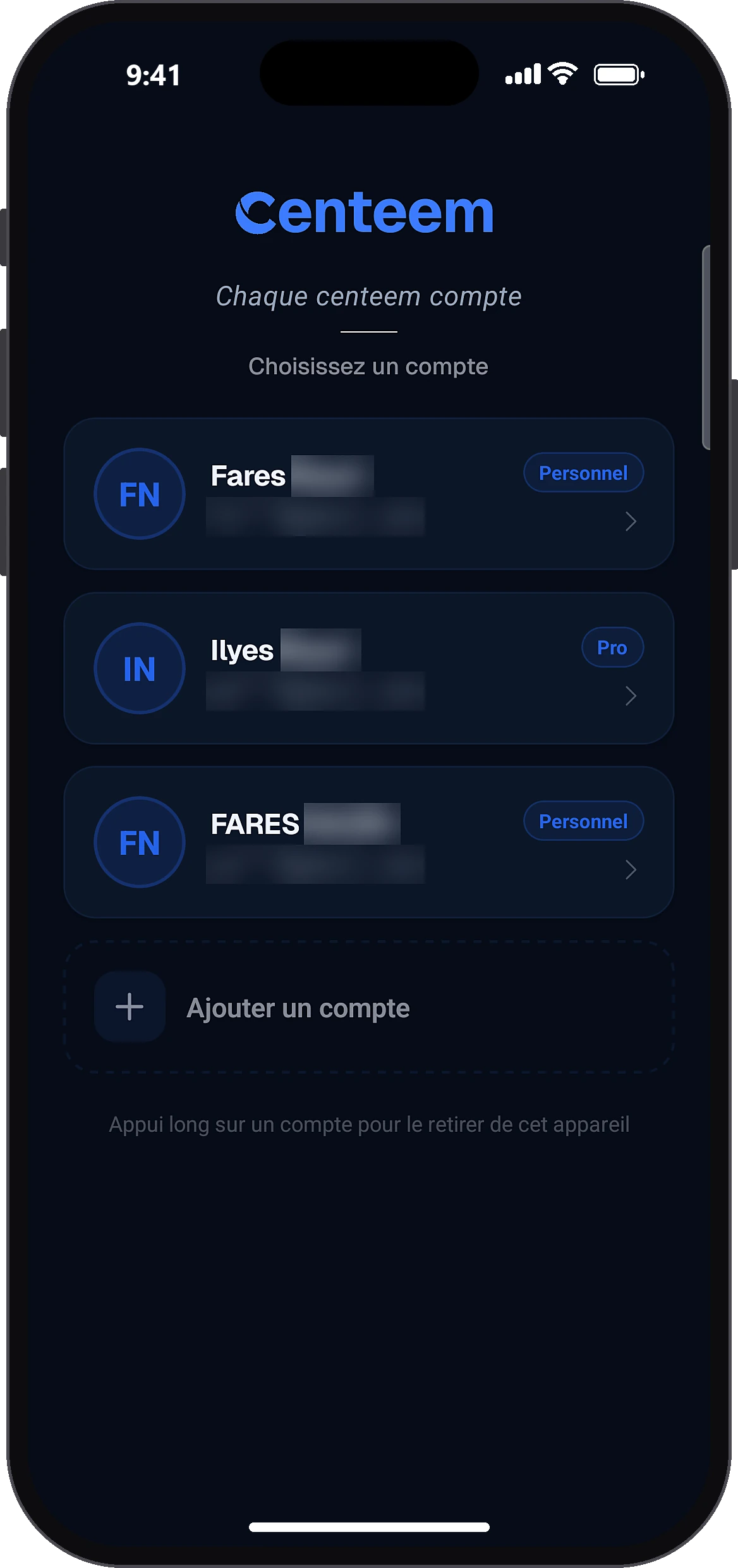
Choose an account
The “Choose an account” screen lists your accounts with their type (Personal, Pro, Tourist). Tap the one you want, then type its PIN, or use biometrics.
- 3
Add an account
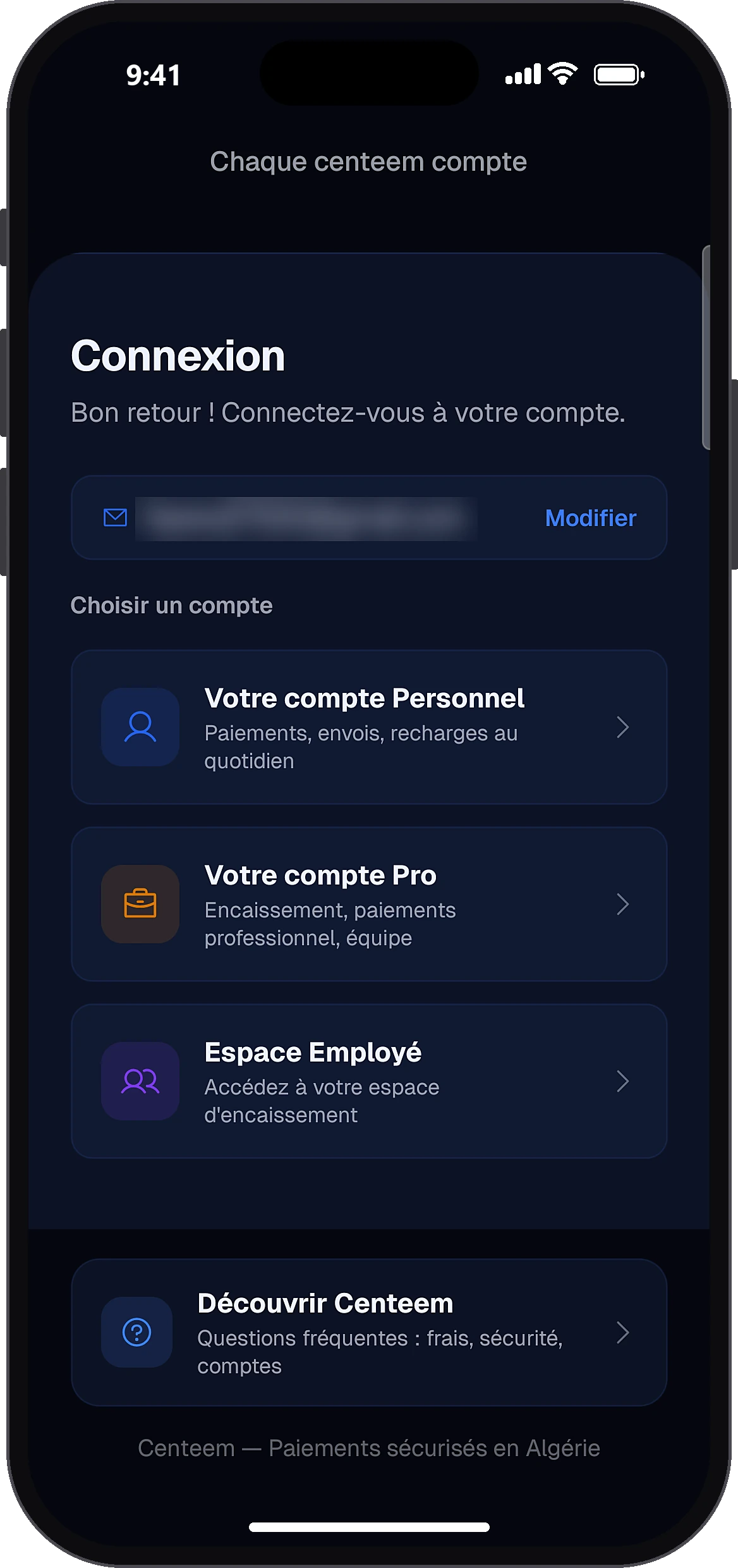
Add an account
To add an existing account or create a new one, tap “Add an account”: you reach the sign-in screen, with “Create an account”.
- 4
Remove an account from this phone
Remove account
Press and hold an account in the list, then confirm removal. It only disappears from this phone: the account is not closed, and you will need to sign in again with the password.
- 5
Finish the new account
HomeComplete your Pro account
On the new account, the “Complete your Pro account” (or Personal) banner shows that your identity is already verified. Tap it.
- 6
Send the remaining documents
Finish setting up your Pro account
The list shows your ID as already approved and the remaining documents. Tap each line: trade register photos, NIF/NIS certificate, face video, CCP cheque and BaridiMob number, then send.
Common problems and solutions
“You can save up to 5 accounts on this device”
First remove an account from the list with a long press, then add the new one.
“The session for … has expired. Please sign in again.”
Sign in again with that account's password.
“This account's PIN is locked for …”
Too many wrong PINs were entered. Wait for the lock to end or sign in with the password.
“Cheque + valid BaridiMob number (20 digits, starting with 00799999) required”
Add the cheque photo and the BaridiMob number (RIP): 20 digits starting with 00799999, shown in the BaridiMob app.
“An account already exists with this email or number”
You already have an account of this type: sign in to it instead of creating another.
Frequently asked questions
Go further
Still stuck? Our team will answer you.
Contact us