
Pay with a QR code
Scan the QR code of a merchant, a shop or someone close to pay in seconds. Free for you: the merchant pays the fee.
- Fees for you
- Free: you pay exactly the price shown
- Merchant fee
- 1 % up to 10,000 DZD, 0.7 % from 10,000 to 100,000 DZD, 0.5 % from 100,000 to 500,000 DZD, 0.3 % above; 1,000 DZD maximum per payment
- QR codes accepted
- A merchant's collection QR, a shop QR, a contact's “My QR” or link, an agent's QR (top-up), a receipt barcode (check)
- Shop QR with open amount
- 50 DZD minimum
- Limits
- Per transaction / day / month. Personal level 1: 100,000 / 200,000 / 500,000 DZD; level 2: 200,000 / 500,000 / 1,000,000 DZD; Seller and Tourist: 400,000 / 800,000 / 2,000,000 DZD
- Where to find it
- Home → Pay → Scan QR
Before you start
- Your identity is verified.
- You have created your PIN.
- Your balance is enough and the amount is within your limits.
- You allow the app to use the camera.
- An internet connection, except to pay a merchant offline (see the dedicated guide).
In the app, step by step
- 1
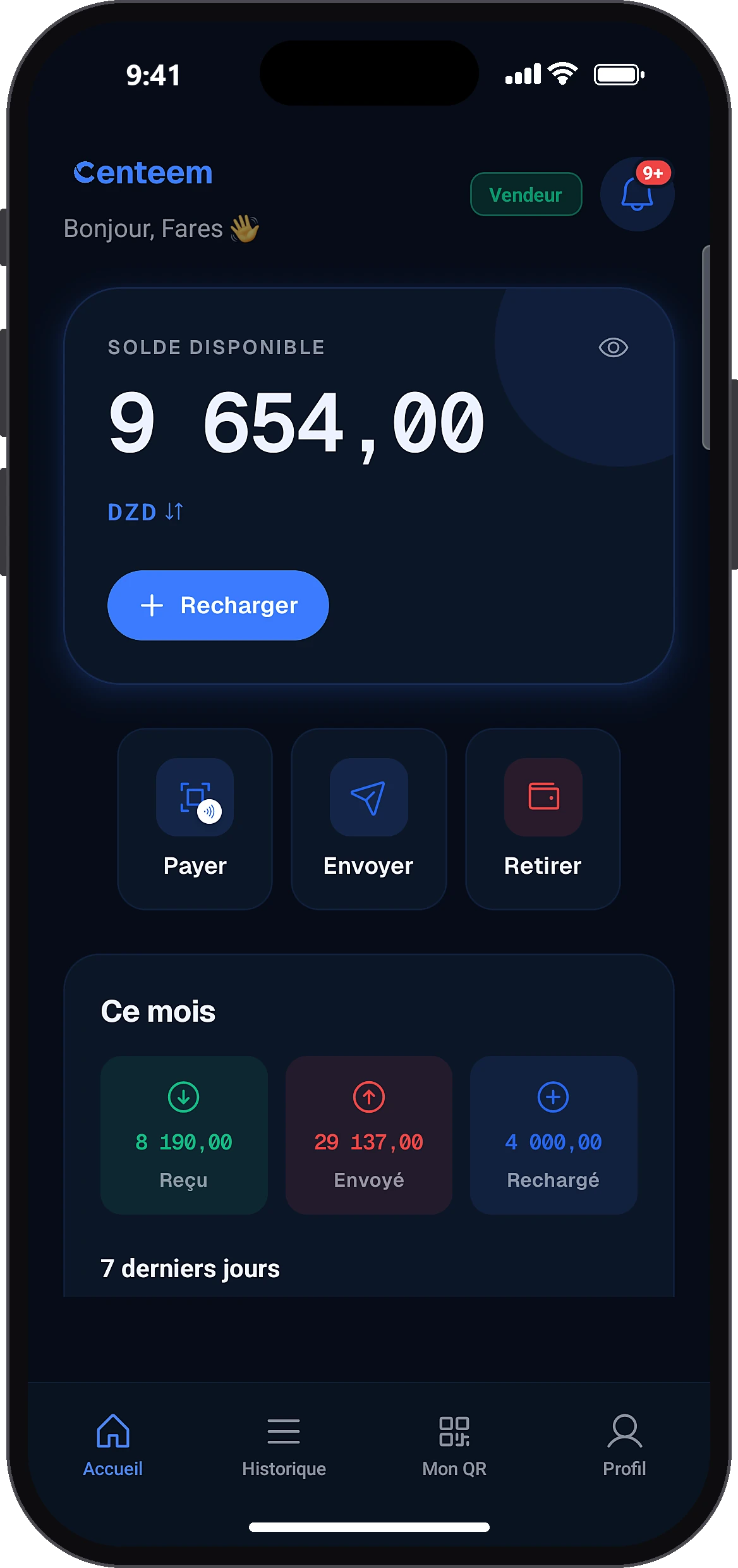
Tap “Pay”
HomePay
On the home screen, tap “Pay”. A window asks how you want to pay.
- 2
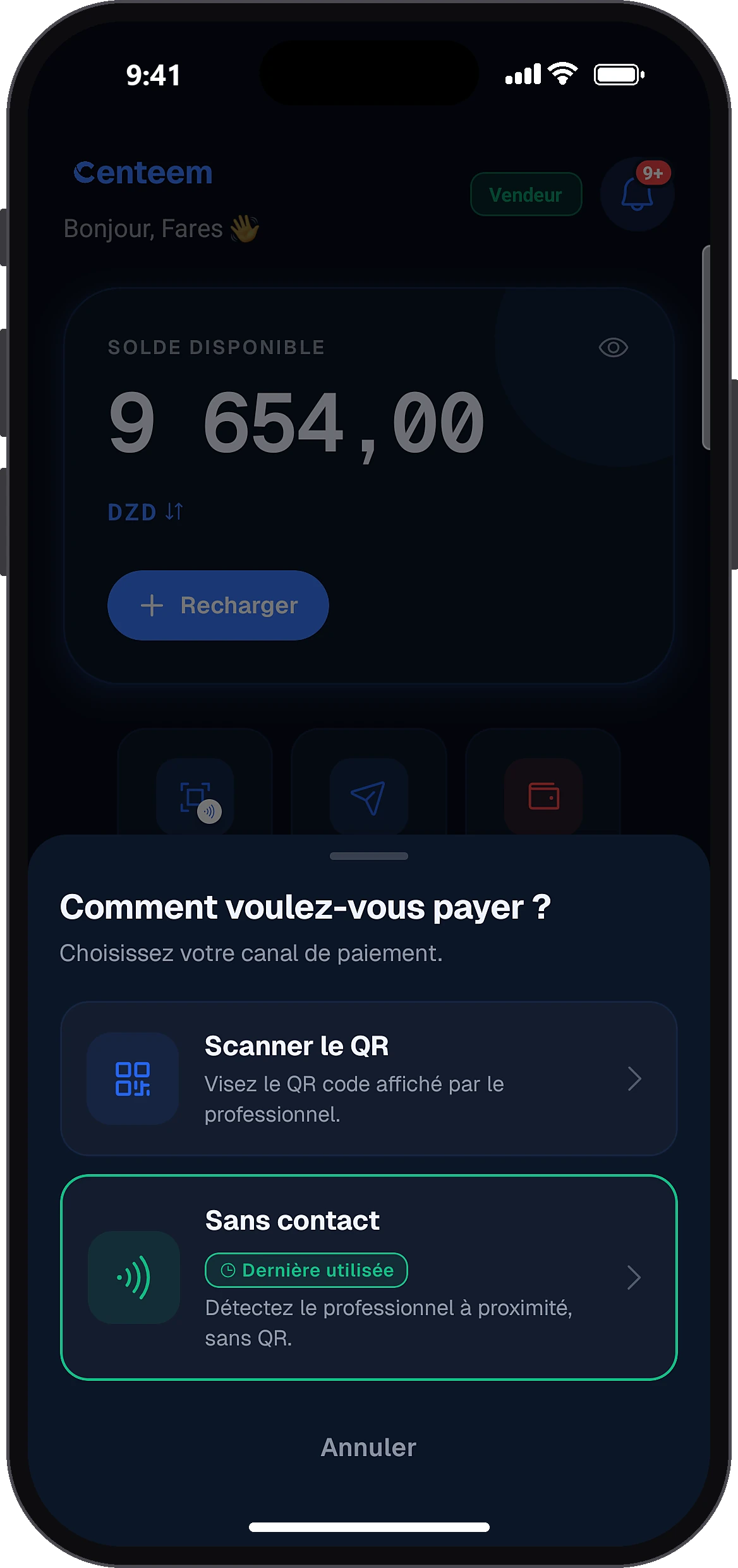
Choose “Scan QR”
How would you like to pay?Scan QR
The last method you used is marked.
- 3
Scan the merchant's QR
The first time, allow the camera. Point it at the QR shown by the merchant: a “detected” message appears. Use the flash if it is dark.
- 4
Shop QR: enter the amount
Continue
For a shop QR, the shop name appears with the price set by the merchant, or an amount field (50 DZD minimum). Tap “Continue”.
- 5
Check and slide to pay
Confirm payment
The “Confirm payment” screen shows the merchant's name, the amount and any reason. The payment cannot be undone. Slide the “Slide to pay” button. If your balance is not enough, the app tells you straight away.
- 6
Confirm with your PIN
Enter your PIN, or use your fingerprint or face if biometrics is on for this account.
- 7
Show the receipt if needed
The “Payment successful” receipt shows who you paid, the date and time, the reference, your remaining balance and a barcode to show the merchant. Tap “Share receipt” to create a PDF.
Common problems and solutions
“This QR has expired. Ask the merchant to show a new one.”
A merchant's collection QR is valid for a short time. Ask them to show a new one.
“This payment order has already been paid.”
Check your History: don't pay twice.
“This payment order was cancelled by the seller.”
Ask the merchant for a new QR.
“Insufficient balance … Top up your account to pay.”
Top up your account, then scan again.
“Unrecognised QR type”
This is not a Centeem QR. Only scan Centeem QR codes.
“Read error”
Tap “Retry”, move closer to the QR and use the flash.
“Offline, only paying a merchant (collection QR) works.”
Paying a contact or a link needs a connection. Reconnect.
“Incorrect PIN. … attempt(s) left before lockout.”
After 4 mistakes, the PIN is blocked for 15 min, then 1 h, then 24 h. Use the forgotten PIN option to reset it.
“Minimum amount 50 DZD.”
On a shop QR, enter at least 50 DZD.
Frequently asked questions
Go further
Still stuck? Our team will answer you.
Contact us